
Import Lookup Data
After you have defined all the necessary Parameter columns and Value columns for your Lookup, you can import a file containing the data for the rows and columns in the Lookup. This file must be a comma-separated values file (.csv). The file should have a column header row populated with either the Display Names or the Internal Names of the Parameter and Value columns. The file can have as many rows as needed, but the Lookup Details screen will display only the first one hundred rows.
Note: You can also import Lookup data using the Advanced Import feature (see Configure a Lookup Import Definition for more information). Before using the Advanced Import feature, you must first publish the Lookup and deploy Lookup metadata.
To import a file of Lookup data:
-
Select Rules from the top navigation bar, then select Lookups from the side navigation menu. The Lookups screen is displayed.
-
Search for and select the desired Lookup (see Search for a Lookup for more information on the available search options). The Lookup Details screen is displayed.
-
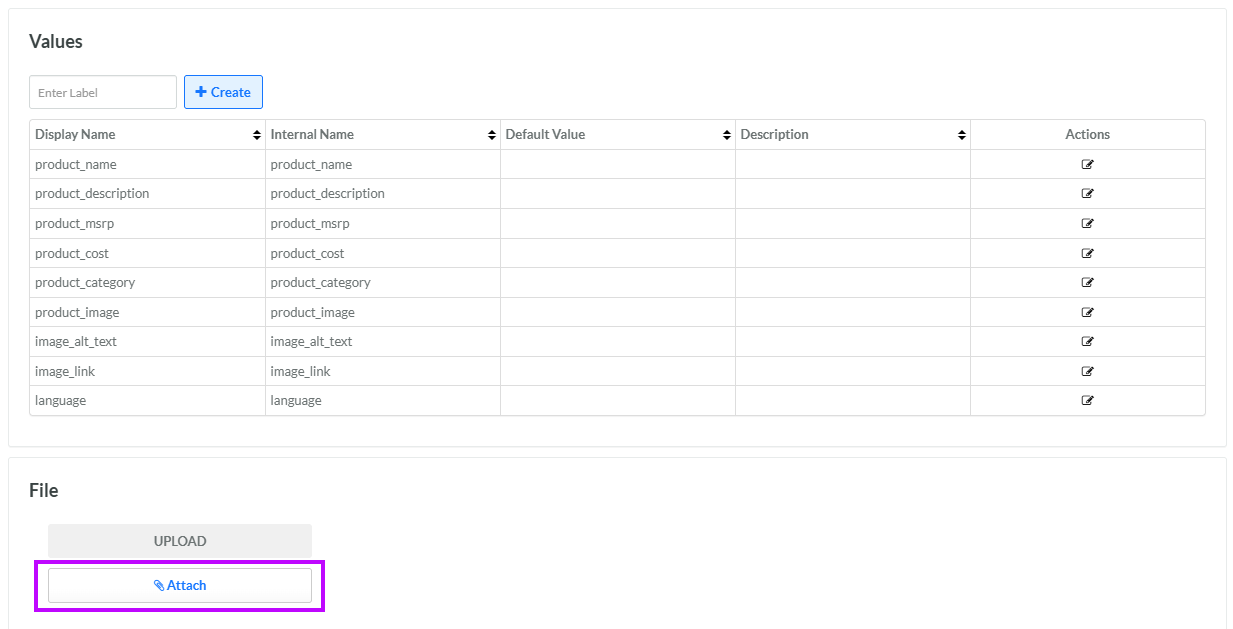
In the File section, click Upload. Browse to the desired import file and click Open.
-
Click Attach. The platform begins the upload process.
-
During the upload, an "in progress" message is displayed within the Content section. When the upload is complete, the Content section is populated with the first one hundred rows from the import file. Parameter columns are indicated with the label "(param)" next to the column name.
Note: You may need to refresh your browser to see the updated Content section.
-
To sort the Content section, click the arrow icon within the column by which you want to sort. Click this icon again to toggle the sort order between ascending and descending.
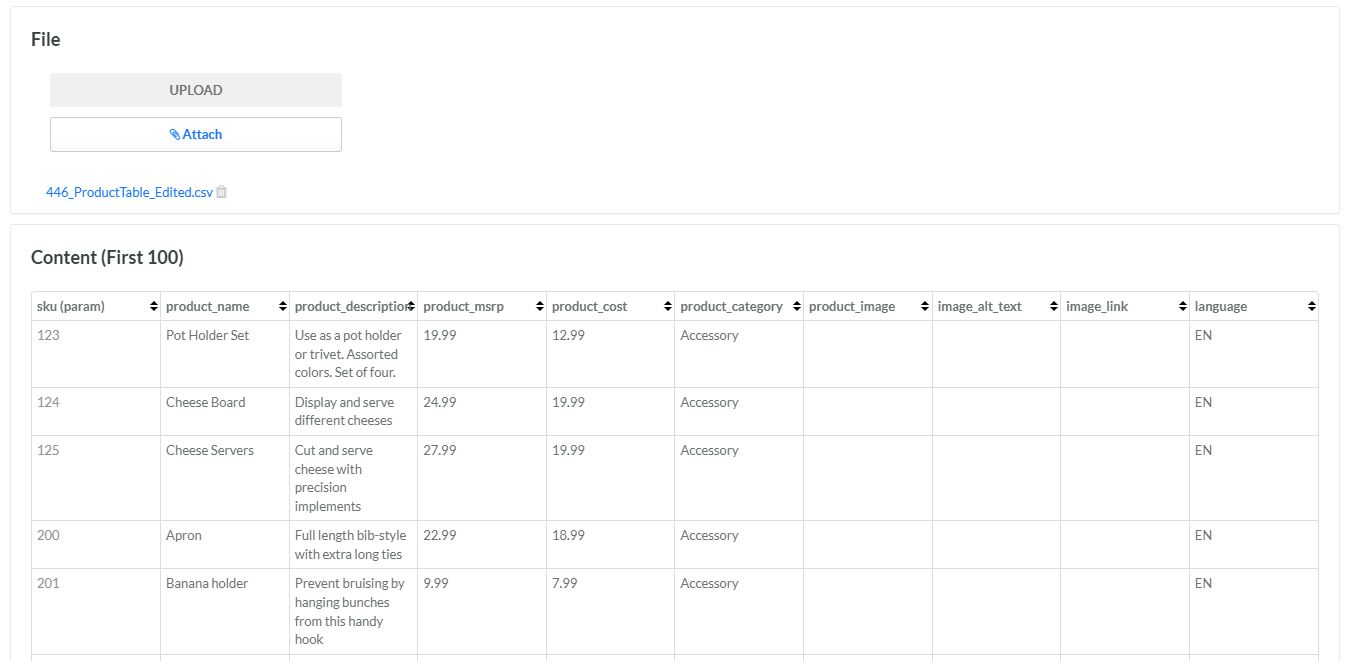
Note: The name of the import file is displayed within the File section. If you click this file name, the platform downloads the original import file to your local PC.
Optionally, you can store an image within a Parameter or Value column by providing the URL to the stored image. If you configure a column to "display as image," the platform displays the image, rather than the URL. For example, in the Lookup below, the product_image Value column has been configured to "display as image." See Edit a Parameter Column or Edit a Value Column for information on how to configure this column setting.

